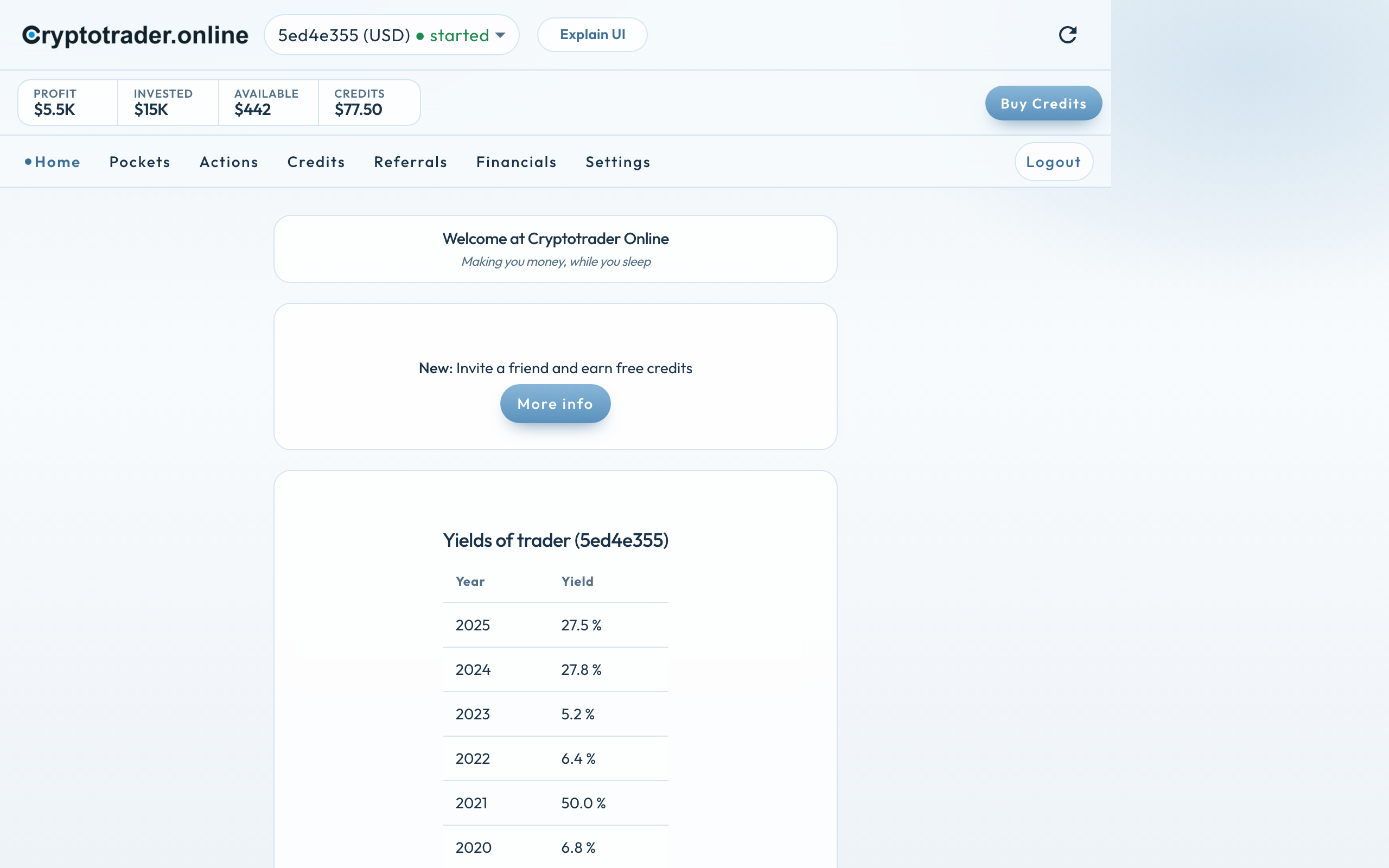
This is the map of the Home screen. Tap a number in the screenshot, or read the list below. Each part has a zoomed crop, a short explanation and — where it helps — a link to more detail.
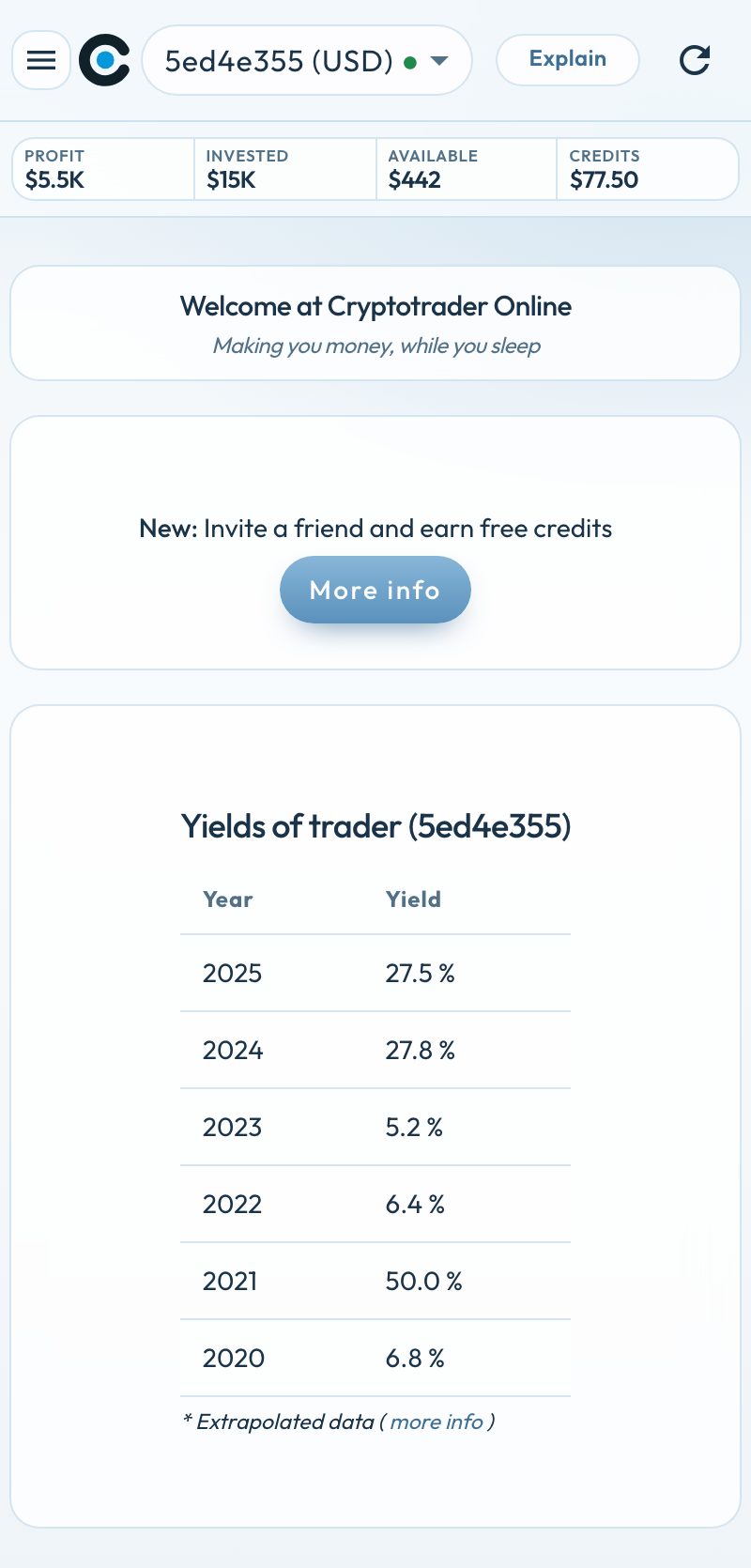
This is the map of the Home screen on the phone. Each part below is zoomed in, with the explanation next to it.
The Home screen on the phone. Tap a number; the explanation sits below, zoomed in.
1
Trader picker
At the top you choose which trader you are looking at. You see the trader — here 5ed4e355, the Trader ID, because this one has no alias — plus the currency (USD). The green dot and started mean this trader is running; with paused or a red dot it is idle, usually because it is out of credits. Next to the picker is Explain UI (on the phone: Explain) — that opens this explanation. Under one account you can have several traders, euro and dollar; switch them here.
The arrow at the top right fetches the latest status of your trader and your exchange. The numbers in the bar then come in again. Handy if you have just deposited or bought credits.
3
Stats bar
On the phone the explanation button sits as Explain in the top bar, not in this bar.
The bar under the trader picker shows this trader’s figures, from left to right.
Profit — this trader’s profit since the start, in dollars. In the example $5.5K. That profit sits in your exchange account and is used again for trading.
Invested — what is in: the available funds for this trader on the exchange plus the value of your pockets at the original purchase price. That is different from deposits on Financials, where it is what you deposited that period. Deposit extra dollars on the exchange to raise the stake in this bar.
Available — the free balance this trader may still put to work. It counts other traders on the same account, and any Trader Limit. So it is not automatically everything that sits on the exchange.
Credits — your balance to keep the trader running. With a positive balance it runs; at 0 or below it pauses. A dollar trader uses dollar credits — separate from euro credits.
On the phone Buy Credits sits at the top of the hamburger menu, not as a separate button next to the figures.
On the right, separate from the figures. Here you buy new credits: first euro or dollar, then the amount (25, 50, 100 or custom). You can pay with iDeal or PayPal. As soon as the balance is positive, the trader starts on its own.
On the phone the menu sits behind the hamburger icon. Buy Credits is at the top of that menu; Logout at the bottom.
Via the menu you go to the rest of the app. Home is this screen. Logout on the right signs you out.
Pockets — open bitcoin positions, including Missing and Partial. There you also see how much bitcoin the trader has under management.
Actions — the log of buys and sells. On the phone that table is rearranged: date, price and paid stay readable.
Credits — the credit history: bought, deducted, bonus.
Referrals — invite friends and share your coupon code.
Financials — the account statement for this trader over a month, quarter or year. You see deposits or withdrawals, net profit on the exchange (fees already deducted) and credits paid (20% of that profit). Completed months only; the current month is not included. Only this trader; other assets on the exchange are not in this view.
Settings — per trader: strategy (Trading or Sell Only) and support for multiple traders.
The card New: Invite a friend and earn free credits is the short invitation on Home. Via More info (or the menu Referrals) you share your coupon code. You and your friend get bonus credits when they join.
At the bottom is this trader’s yearly return — Yields of trader (5ed4e355). You see at a glance how the years went. On Returns are the calendar-year returns of existing users.
On the phone it is the same screen: the same figures and names. The menu sits behind the hamburger icon; Buy Credits is at the top of that menu.
We use cookies for the website (essential, including coupon/affiliate) and, only with your consent, for statistics via Google Tag Manager. Reject does not load tracking.