



Kraken – Create an API key
Back to step 1: Registration with Kraken
Step 2: Create API key at Kraken
In order for Cryptotrader.online to trade on your behalf, we need a so-called API key. You can create this yourself in Kraken and it works as follows:
- Go to kraken.com (1) and click Log in (2)

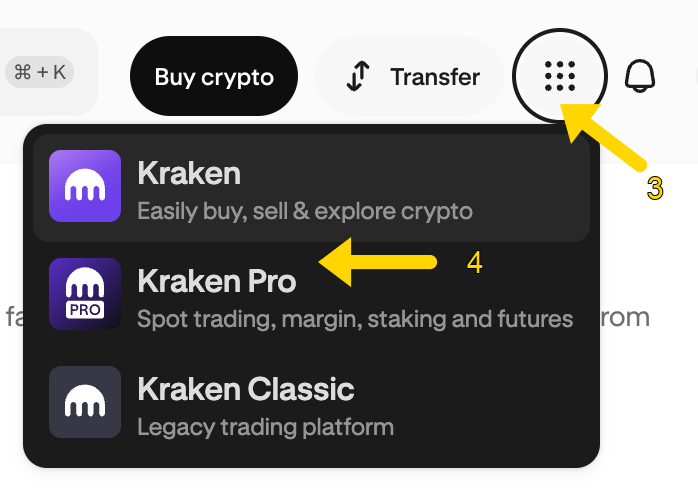
- Click the 9 dots at the top right (3) and choose Kraken Pro (4)
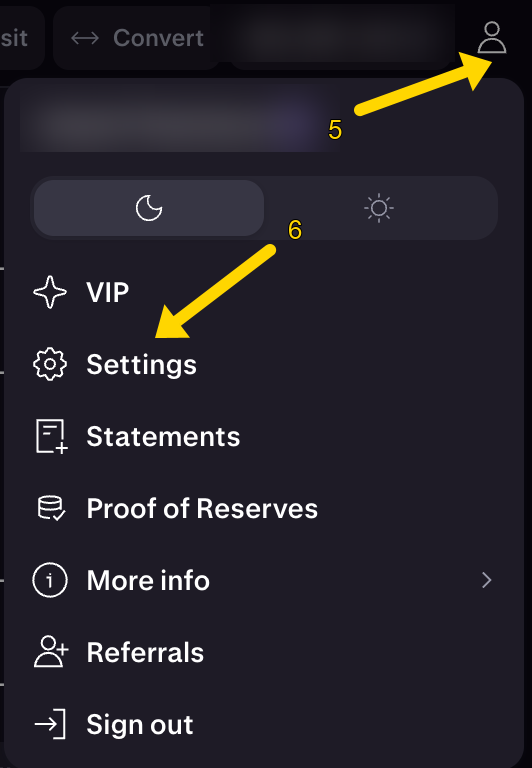
- Open the user menu via the user icon (5) and choose Settings (6)
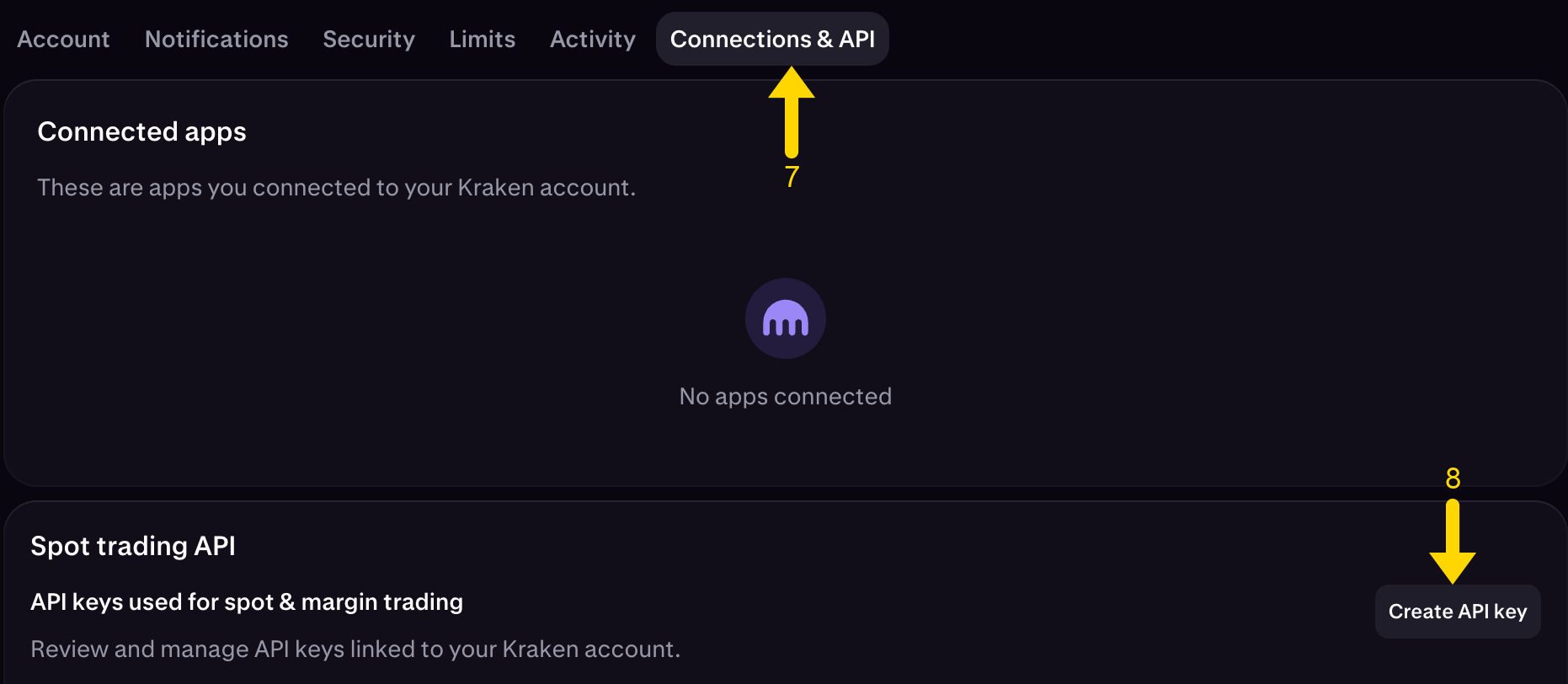
- Go to Connections & API (7) and click Create API key (8)
-
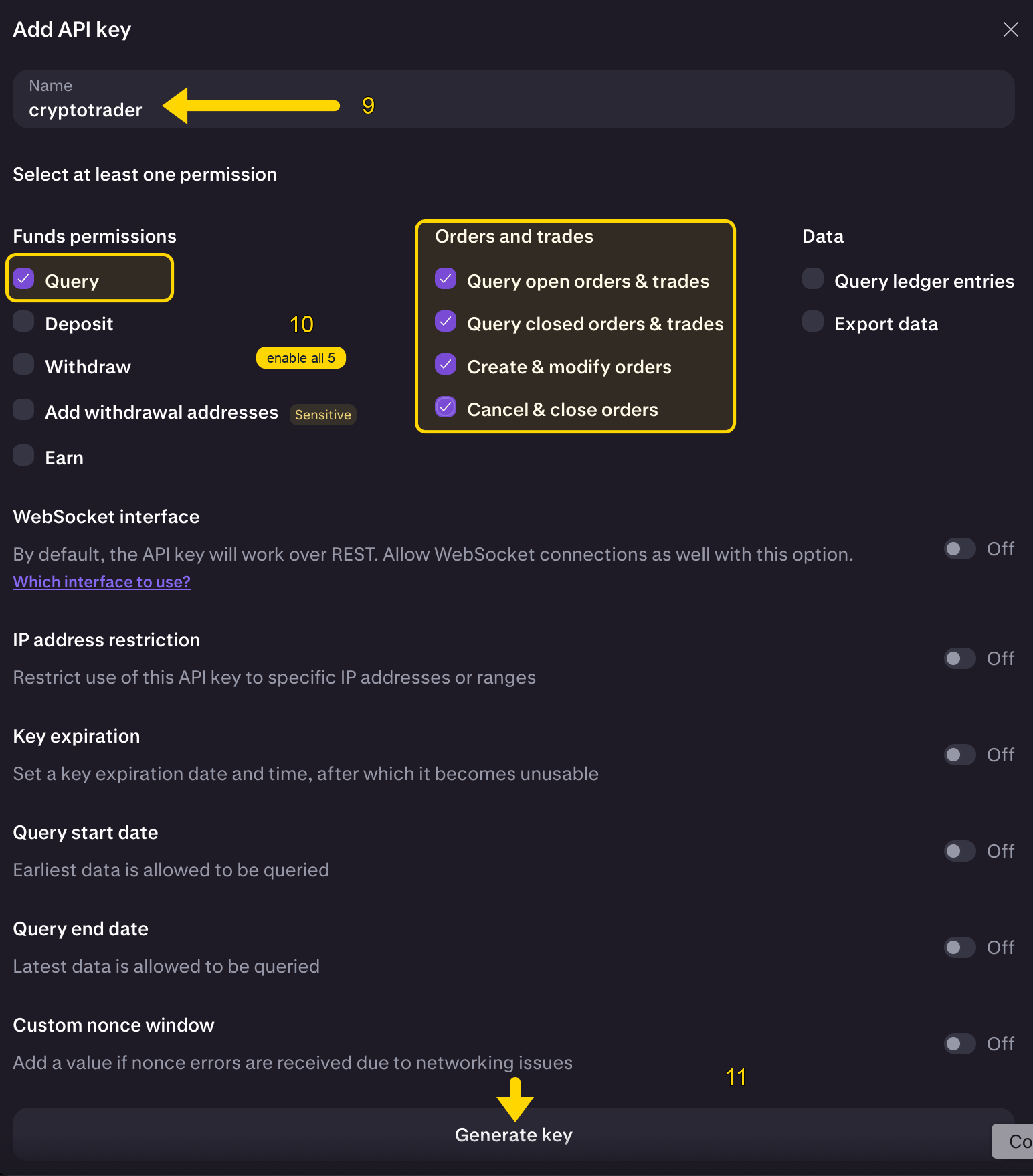
Choose a name for your API key, for example: Cryptotrader (9)
-
Set the permissions for your API key (10). It is important to enable only the following 5 permissions:
-
Query
-
Query open orders & trades
-
Query closed orders & trades
-
Create & modify orders
-
Cancel & close orders
Leave the rest of the settings at their default values. When everything is filled in correctly, click Generate key (11).
Kraken then asks for your verification code. Enter the code from your authenticator app and confirm.
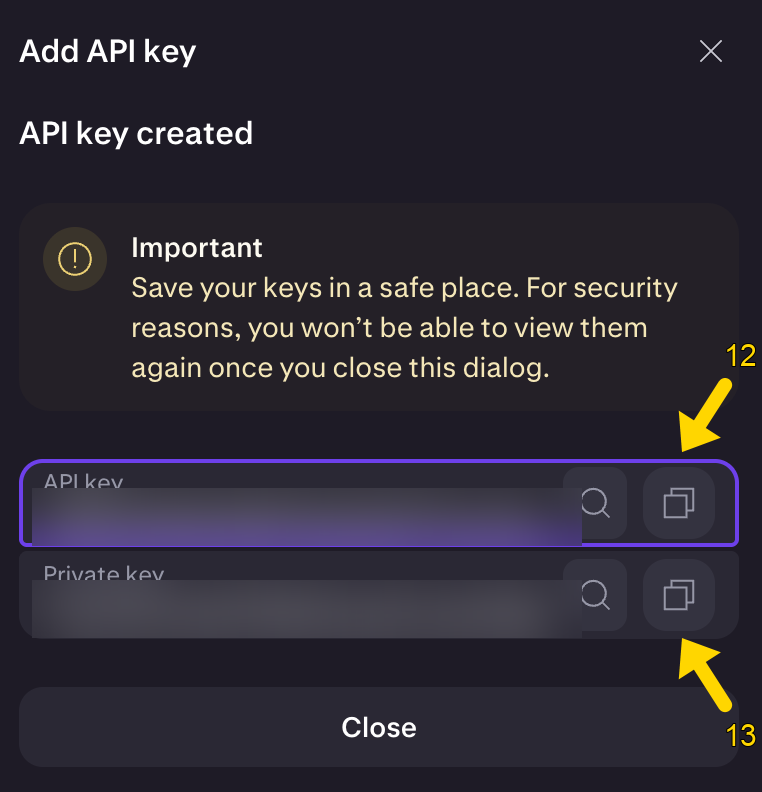
You will now see the following screen. Copy the API key (12) and Private key (13) to a simple text editor such as Notepad. Do NOT close this screen until you are sure both keys have been copied correctly. The API key and Private key are shown only once and cannot be retrieved later. You will need them when registering.
Tip: Use a simple text editor (Windows: Notepad, MacOS: TextEditor) to copy / paste the API key / Private key and NOT Microsoft Word. This can change the key due to its automatic formatting, making the key no longer valid.
Then click Close. You will see the new API key cryptotrader (14) in the overview.

Now proceed to step 3: Transfer money to Kraken Exchange