



Bitstamp – Create an API key – Sub Account
Instructions for creating an API key for a Bitstamp sub-account for Cryptotrader.
Turn on Advanced settings. Then, under Associated account, choose the sub-account you want to use for Cryptotrader. In this example: TraderEUStagTest.
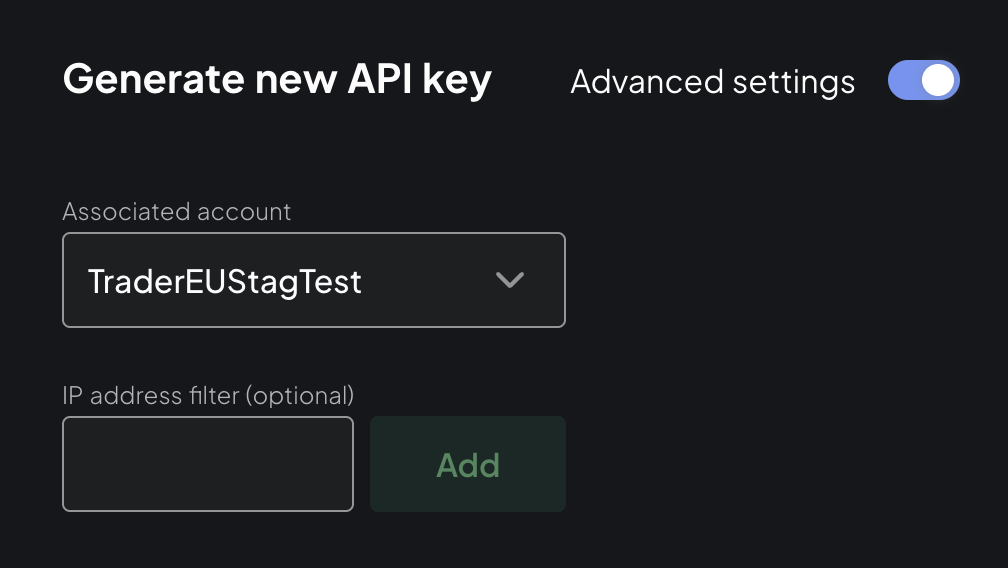
If you do not have a sub-account yet, you can create one via User → Settings → Sub Account (left-hand menu) → Create new sub account.
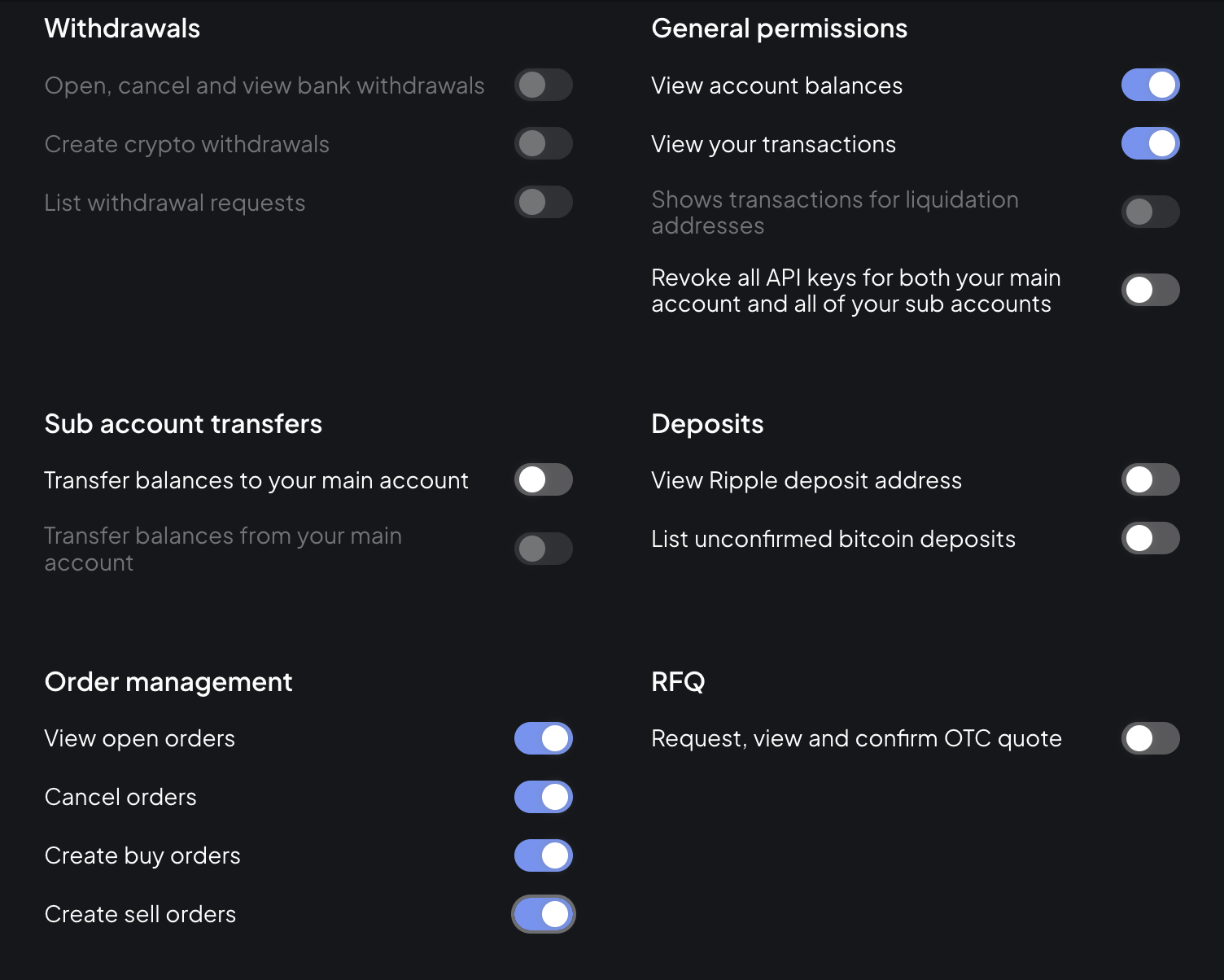
Turn on only the following permissions:
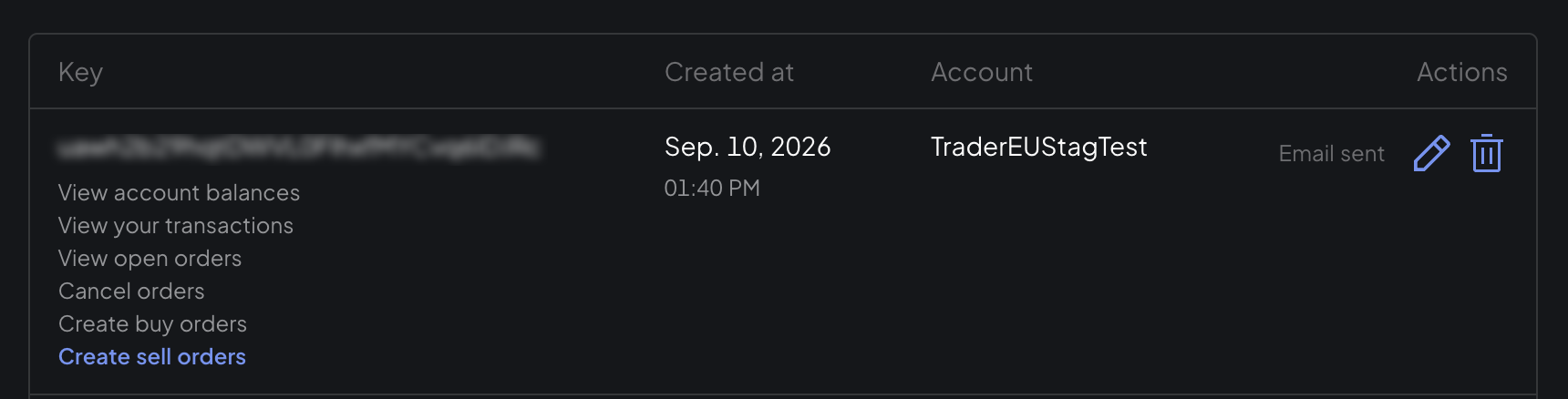
- View account balances
- View your transactions
- View open orders
- Cancel orders
- Create buy orders
- Create sell orders
Leave withdrawals, transfers and the remaining rights off.
Press the “Create New API Key” button.
You now get the well-known 2 factor authentication screen. Enter your 2FA code here.
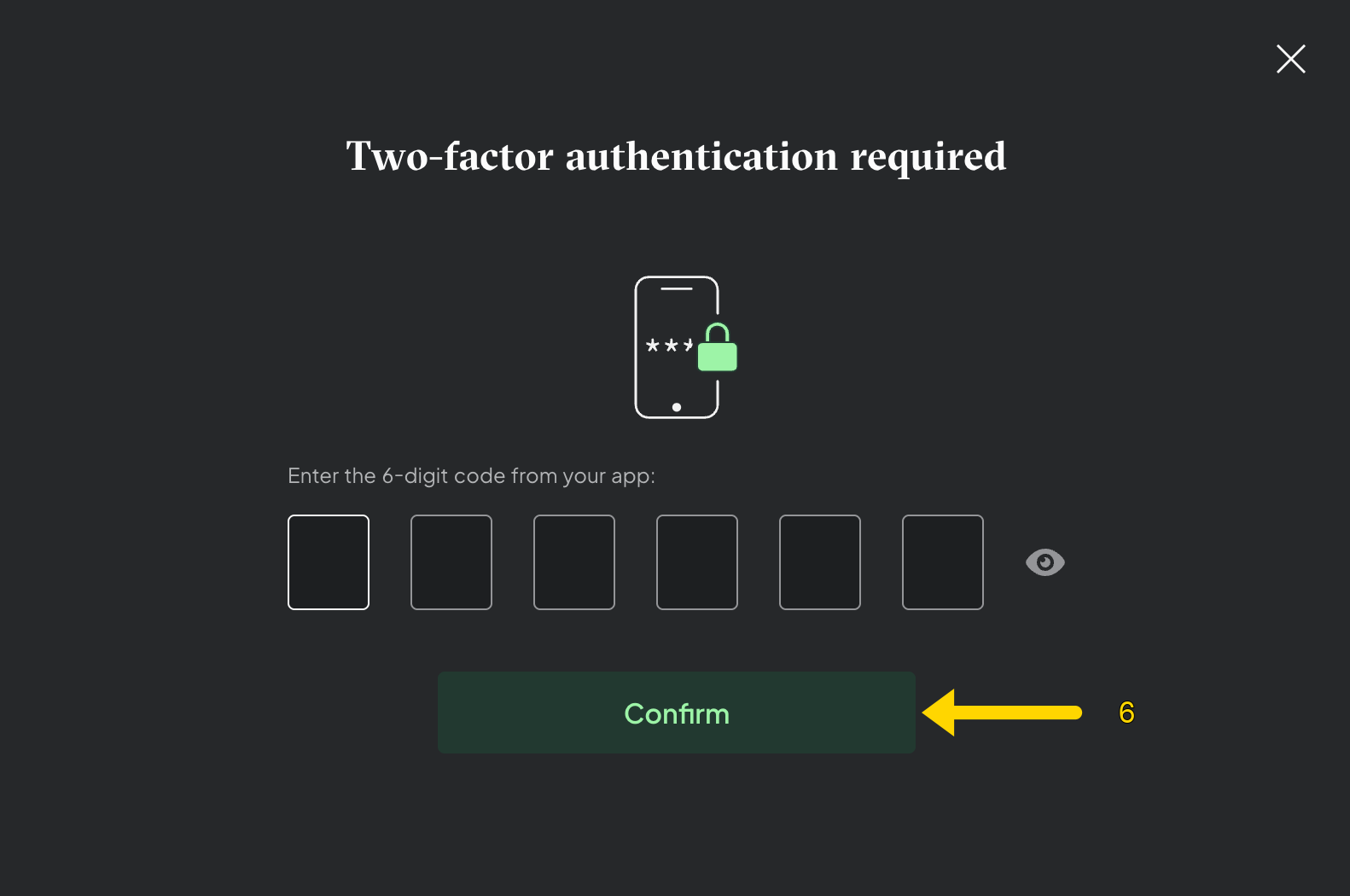
Once you have entered the 2FA code, you will see the following screen
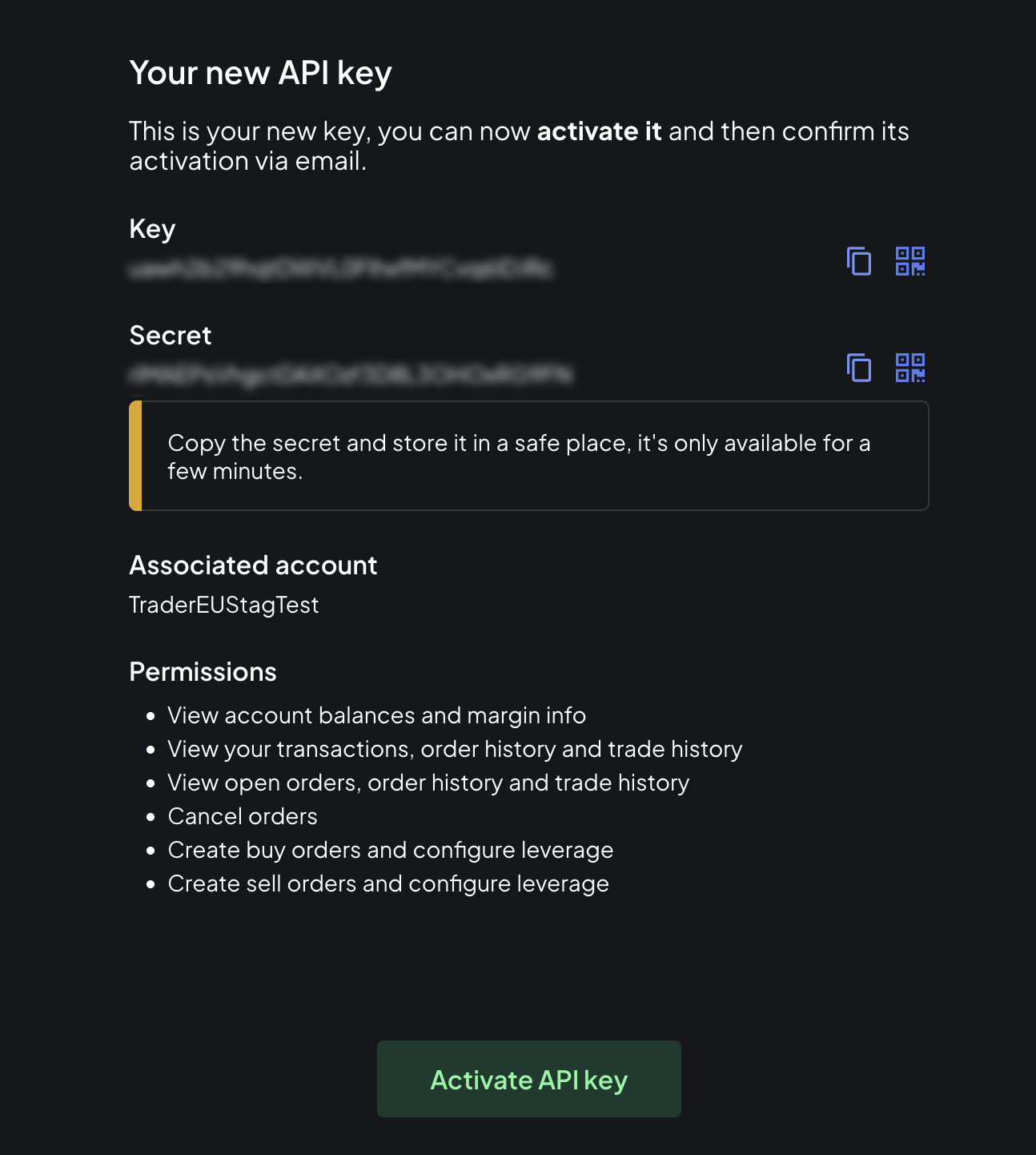
You will now see the API key and its SECRET. Make a copy of your API-KEY and SECRET by clicking on the copy icon and paste both into a simple text editor.
Tip: Use a simple text editor (Windows: Notepad, MacOS: TextEditor) to copy / paste the API key / SECRET and NOT Microsoft Word. This can change the key due to its automatic formatting, so that the key is no longer valid.
The SECRET is only shown once and can no longer be retrieved. You will need this API-KEY and SECRET later.
**IMPORTANT:**Now you need to “Activate” the API key. To do this, click on the “Activate API key” button. You will then receive an email from Bitstamp with a confirmation link.
You will now see that the API key has been created and is waiting for confirmation by email
This is the email you receive from Bitstamp. Click the link in the email to activate your key.

As soon as you have clicked on the link in the email your key is valid.